Texture Exporter/Use it
Updating a glTF without re-exporting
Re-encode changed textures and patch the glTF in place, leaving its geometry untouched.
After a glTF export, the bottom of the Scene panel tracks that file: whether its textures still match your settings, and what it would take to bring it up to date. You can change textures and update the glTF as often as you like, without exporting the scene again.
The status box
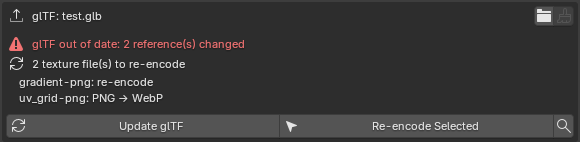
The box names the last exported glTF and shows one of:
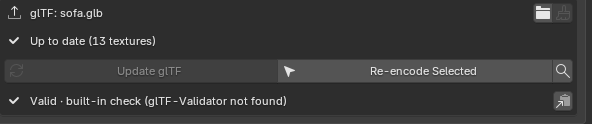
- Up to date: every texture matches.
- glTF out of date: N reference(s) changed. A change needs the glTF to point at a different file: a different format, mipmaps turned on or off, a renamed file, or a texture unticked since the export (it gets removed from the glTF).
- N texture file(s) to re-encode. The scale, quality or codec changed, so the file needs encoding again but the reference stays the same.
Each changed texture is listed underneath with what changed, e.g. uv_grid-png: PNG → WebP.
Update glTF
Update glTF re-encodes only the textures that need it, into the glTF’s texture folder, then patches the glTF:
- GLB: only the JSON chunk is rewritten. The binary chunk (the geometry) is copied byte for byte.
.gltf: the JSON is rewritten and the.binis never touched.
Then it validates the result. The box goes back to Up to date:
Export All and Update glTF, above the box, does an Export All first and then the update, in one click.
The other buttons
| Button | What it does |
|---|---|
| Re-encode Selected | Encodes the ticked textures again even if their settings haven’t changed, e.g. after you painted them or edited the image outside Blender, and updates the glTF. |
| Magnifier | Runs Validate on its own: the built-in check, plus the Khronos glTF-Validator if you’ve set its path. |
When you still need a full export
Re-export the GLB from File ▸ Export ▸ glTF 2.0 when:
- meshes, materials, objects or animation change;
- you want back a texture that was left out of the export.
With Only Export Modified Textures on, a full export re-uses every texture file that’s still current, so it’s quick.