Blender to TSL/Get started
Getting started
Install Blender to TSL, turn on updates with your licence key, and pick how you want to use it.
Install
Blender to TSL is sold on Payhip. Your purchase comes with the add-on zip and a licence key, which gets you updates inside Blender. There’s no limit on how many of your own machines you use it on.
-
Download the zip from your purchase, e.g.
blender_to_tsl-<version>.zip. -
In Blender, open Edit ▸ Preferences ▸ Get Extensions. In the ⌄ menu at the top right, choose Install from Disk… and pick the zip.
-
Go to Add-ons, search for TSL, and expand three.js TSL Material Export. Its preferences hold the Updates box and the Report a Bug button:
Preferences ▸ Add-ons ▸ three.js TSL Material Export 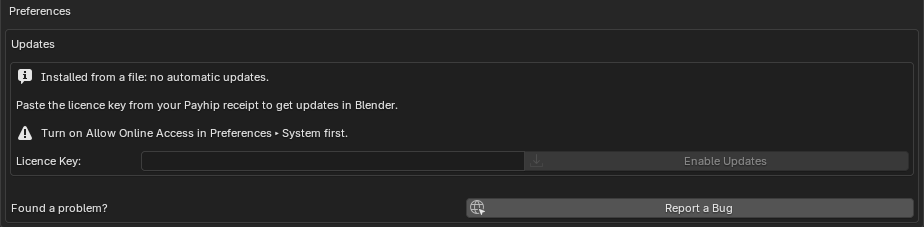
The add-on is ready to use now. The next step only sets up updates.
Turn on updates
-
Turn on Allow Online Access in Preferences ▸ System. Without it, Enable Updates stays greyed out.
-
Paste your licence key under Updates. It’s in your Payhip receipt email.

-
Click Enable Updates. This checks the key, adds the TSL Export Updates repository with the key as its access token, and reinstalls the add-on from it. Your export settings are saved in your .blend files, so they aren’t affected.
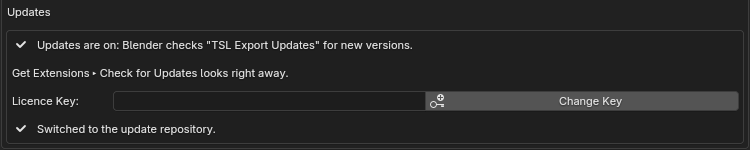
From then on, new versions show an Update button in Get Extensions. Blender checks on startup, or straight away with Check for Updates in the same ⌄ menu. Change Key replaces the key if you get a new one.
If updates don’t work
-
“Licence key not recognised, or the purchase was refunded.” Copy the key again from your Payhip receipt, without spaces around it. Refunded purchases stop getting updates.
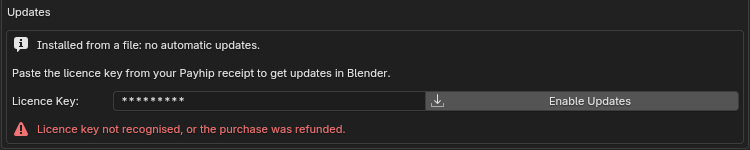
-
Enable Updates is greyed out. Turn on Allow Online Access in Preferences ▸ System.
-
Get Extensions says “HTTP Error 401” for TSL Export Updates. The key stored on the repository isn’t accepted any more. Paste your current key and click Change Key.
-
“The licence check is unavailable right now.” The update server or Payhip is down. Your installed copy keeps working; try again later.
-
Offline machines. Install the zip from your purchase. The add-on works fully offline; only updates need online access.
Setting up the update repository by hand
In Get Extensions ▸ Repositories ▸ + ▸ Add Remote Repository, enter
https://tools.ashthornton.dev/blender-to-tsl/index.jsontick Authentication, paste your licence key as the access token, and tick Check for Updates on Startup. Then uninstall the copy you installed from the zip and install three.js TSL Material Export from the new repository.
Overview
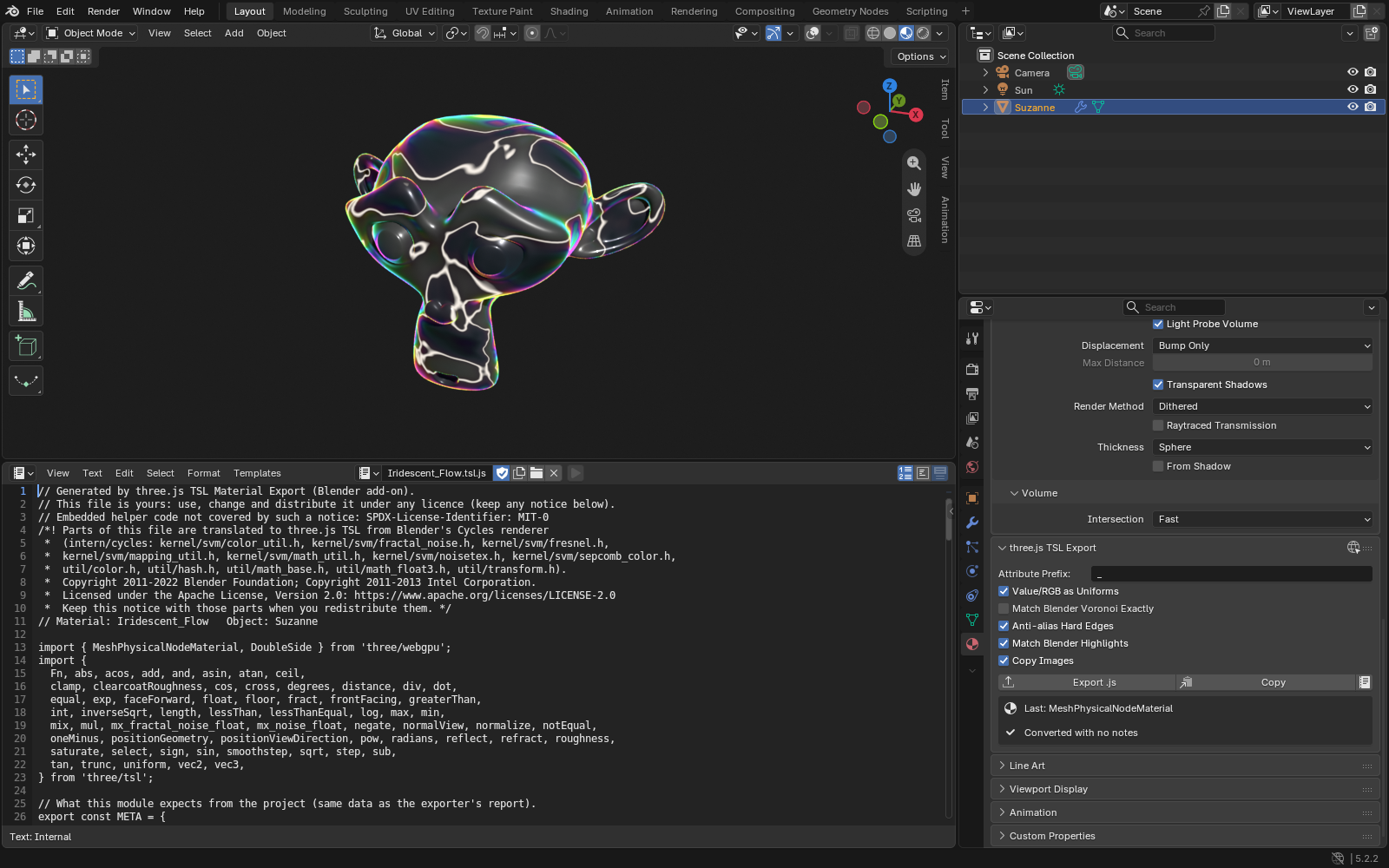
Blender to TSL turns a Blender material’s shader nodes into a JavaScript module that rebuilds the material with three.js TSL node materials. In Blender it’s listed as three.js TSL Material Export.
There are two ways to use it:
- With an AI coding agent. Your agent (Claude Code, Codex, Cursor and others) reaches into the Blender file you have open, exports the material and wires it into your three.js project. See AI agents.
- By hand. Export a
.jsmodule from the material panel and import it yourself. See Exporting a material.
What you need
- Blender 5.0 or newer.
- A three.js project that renders with
WebGPURendererfromthree/webgpu. It falls back to WebGL 2 by itself in browsers without WebGPU. The add-on is tested with three.js r186. Projects that only use the classicWebGLRenderercan’t run node materials. - For the agent workflow: the Blender MCP add-on (Blender 5.1 or newer), or an agent that can run Blender from the command line. The AI agents page has the details.